
For people who manage many repositories
Built for people with too many repositories
Freelancers with several clients, team leads, microservice architectures, consultants: if your projects number in the dozens, SpiderGit shows you the status of all of them on one screen and takes you where you need to act.
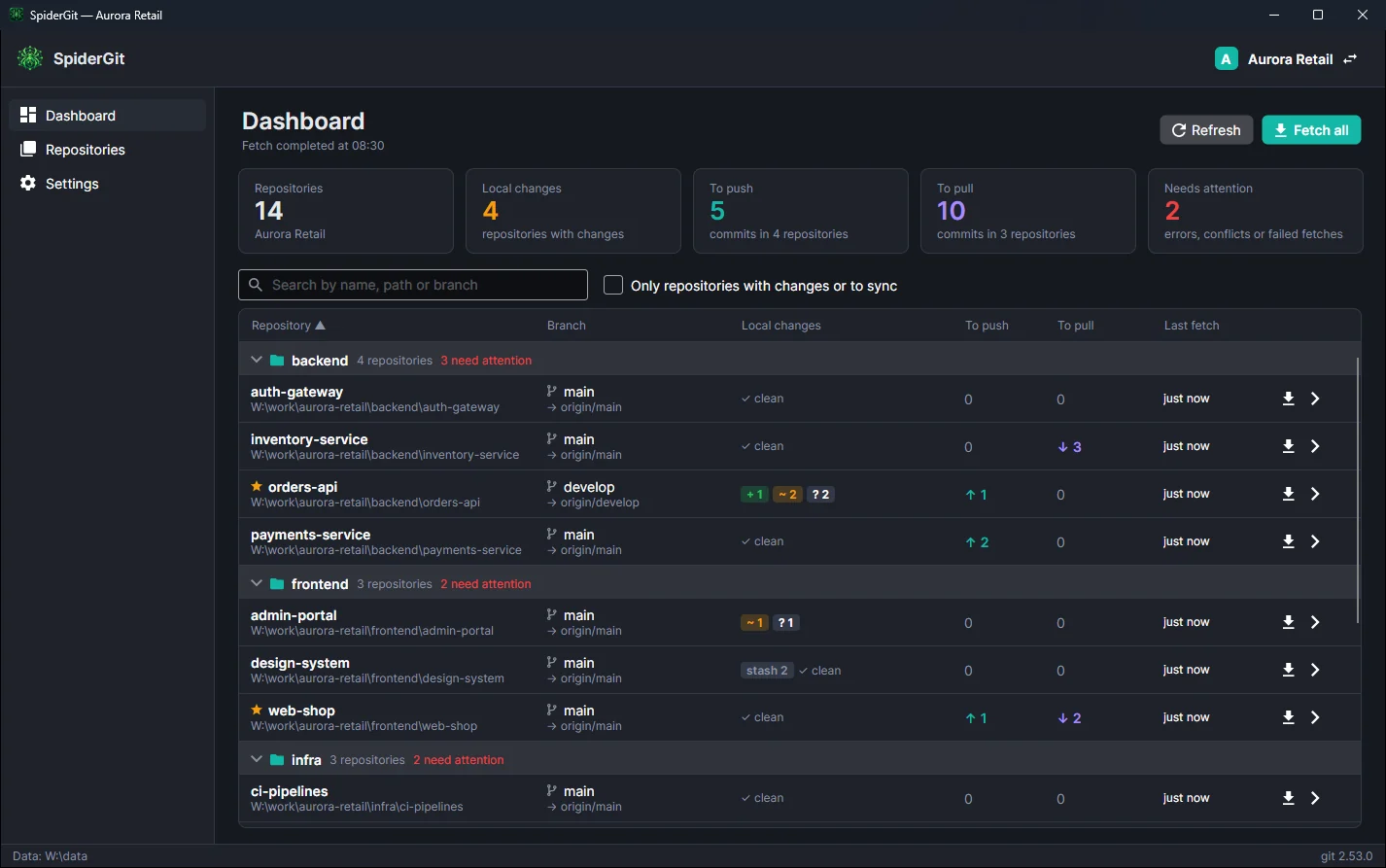
Working with many repositories
With two or three projects, git status in a terminal is enough. With thirty it isn’t:
SpiderGit was born to solve exactly these problems.
- you don’t know which repositories have uncommitted changes, maybe forgotten for days;
- you don’t know where there are commits made but not pushed, which your colleagues can’t see;
- you don’t know which repositories are behind the remote, until you open the project and hit the conflict;
- you jump from one client to another and risk signing commits with the wrong email;
- every new project is yet another folder to remember.
Step 1
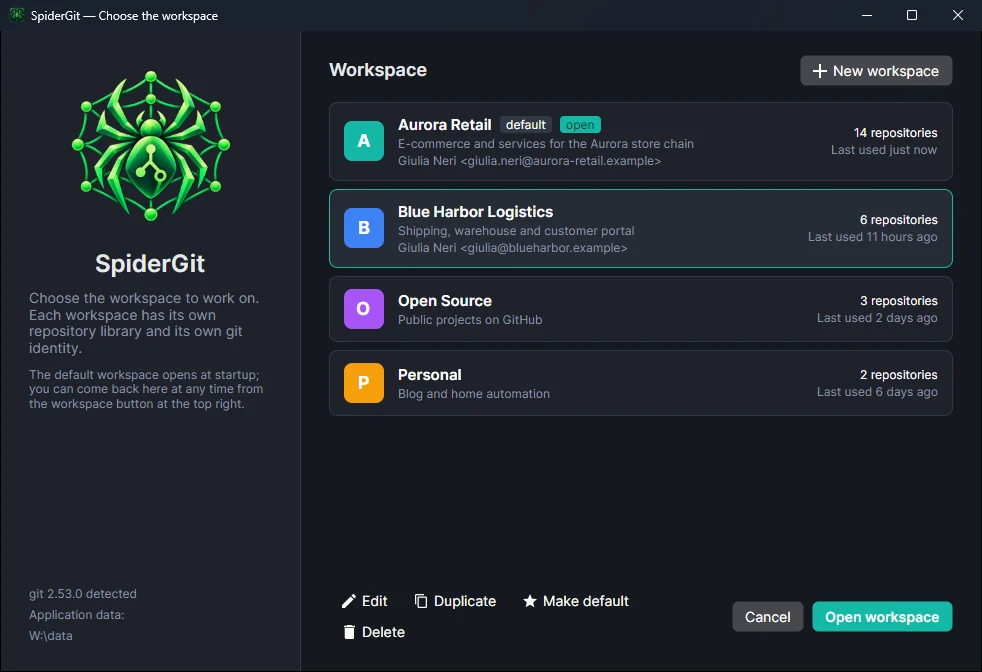
Separate contexts with workspaces
Create a workspace for each client or area of work. Each one has its own repository library, its own groups and its own git identity: when you open a client’s workspace, every commit uses the name and email meant for that client. Switching context takes one click, and at startup the one you use most opens directly.
Step 2
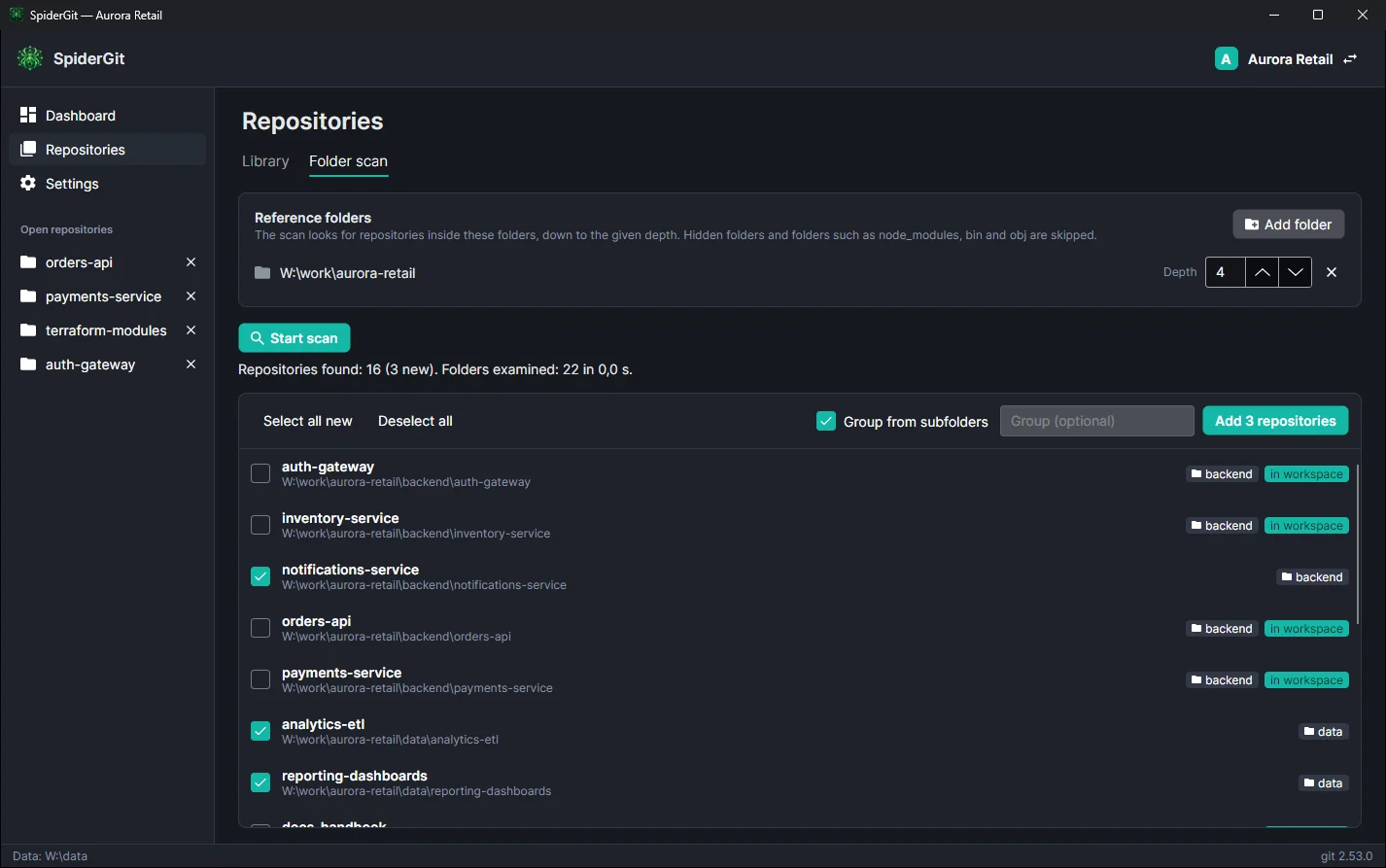
Import everything at once
No need to add repositories one by one: point SpiderGit at the folders you work in and start the scan. It finds every repository, shows you the new ones and organizes them into groups following the subfolders you already use. When you add a project, a new scan finds it.
Step 3
One screen for the status of everything
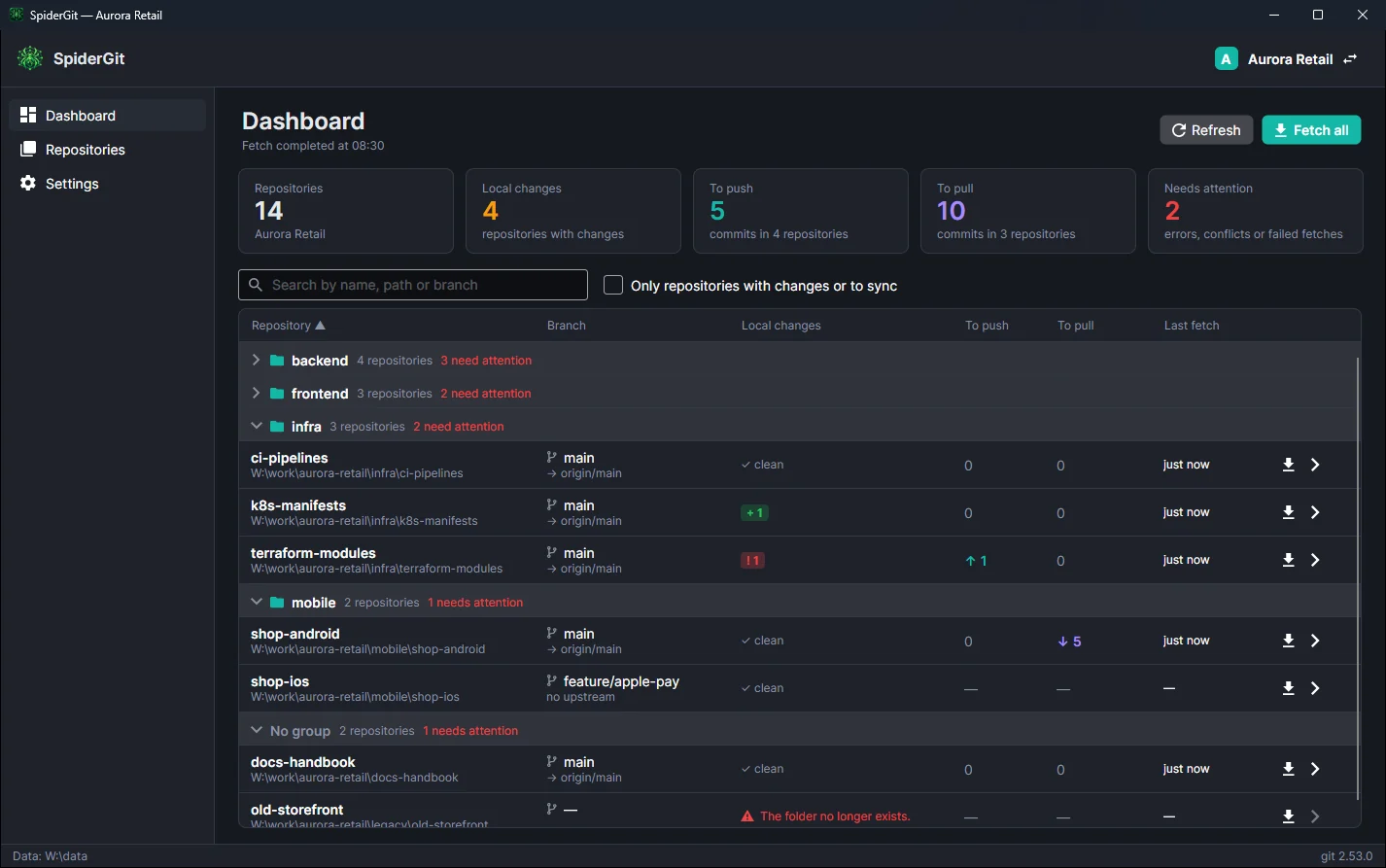
The dashboard answers the everyday questions at a glance.
With the “Only repositories with changes or to sync” filter the table shows only where you need to act. Groups show how many repositories need attention even when collapsed.
| Question | Where you see it |
|---|---|
| Did I leave work half-done? | Local changes column: staged, modified, new and conflicted files, stashes. |
| Do I have commits others can’t see? | To push column and the tile with the total of commits to push. |
| Do I need to update something before starting? | To pull column, after fetching everything in the background. |
| Is something wrong? | Needs attention tile and messages in red: conflicts, missing folders, failed fetches. |
| Which branch is checked out in each project? | Branch column, with the upstream or “no upstream” for branches never published. |
Step 4
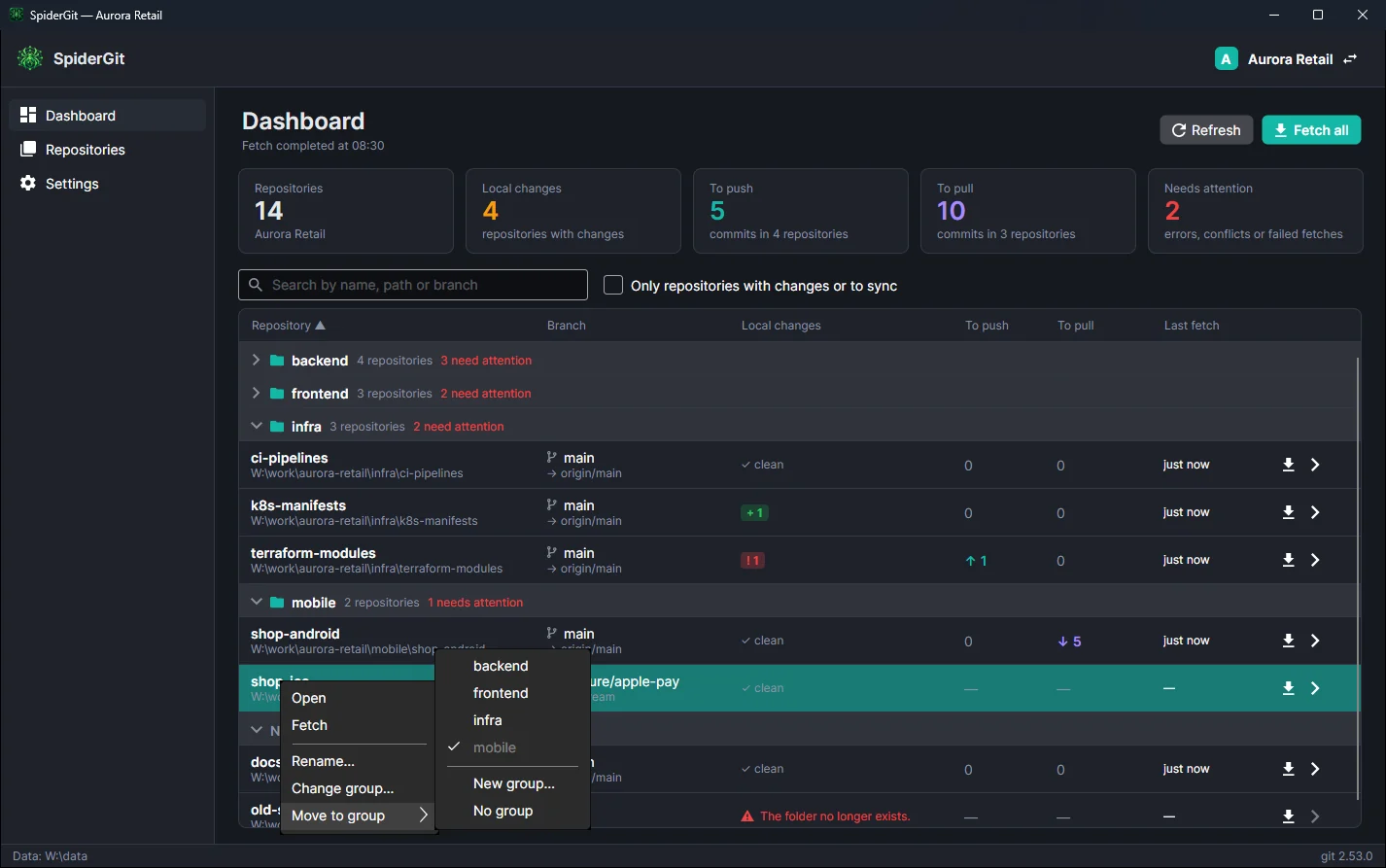
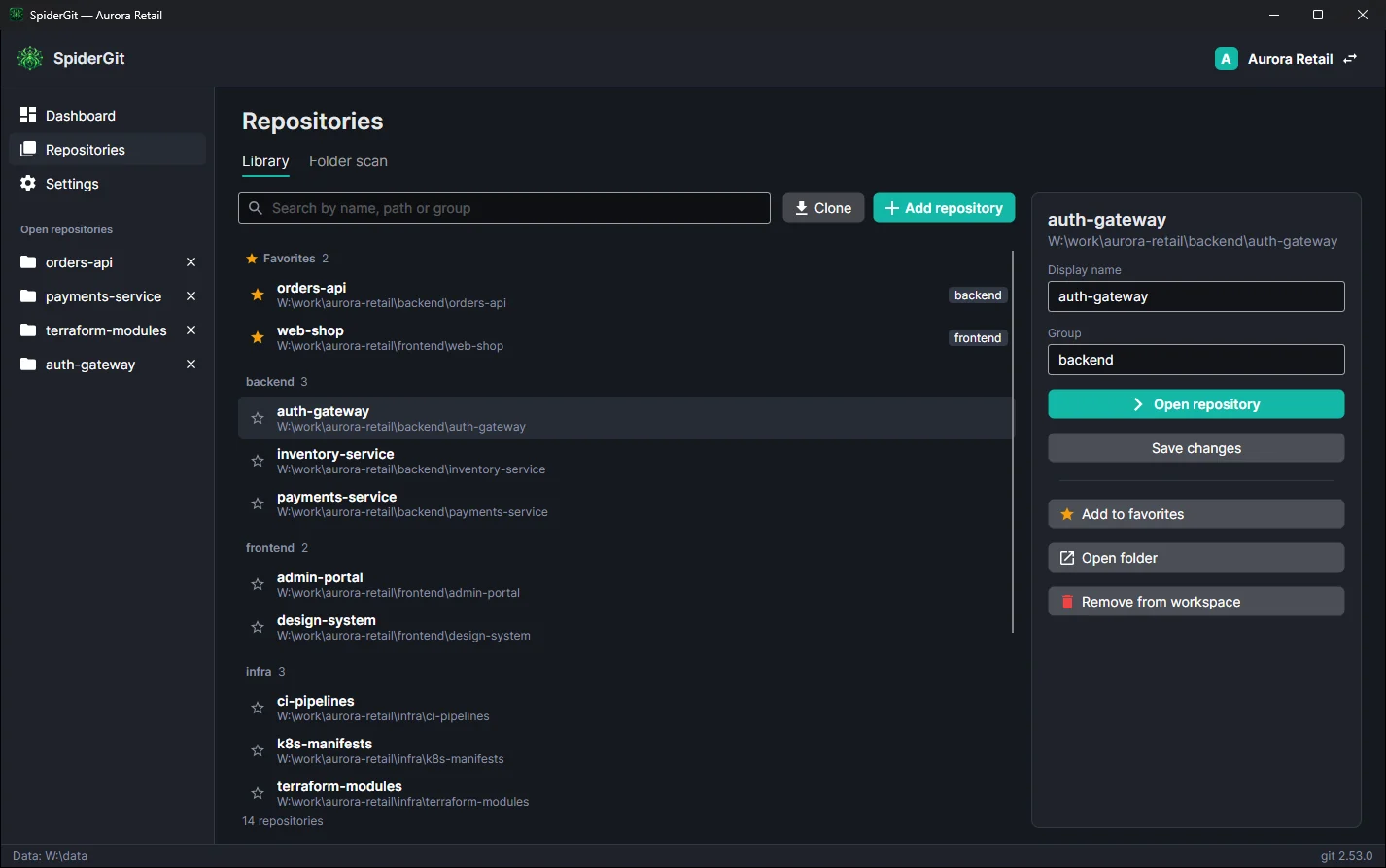
Organize without wasting time
Rename a repository, change its group or drag it elsewhere straight from the dashboard. The library keeps favorites at the top. The same repository (for example a shared library) can appear in several workspaces, with different groups.
Step 5
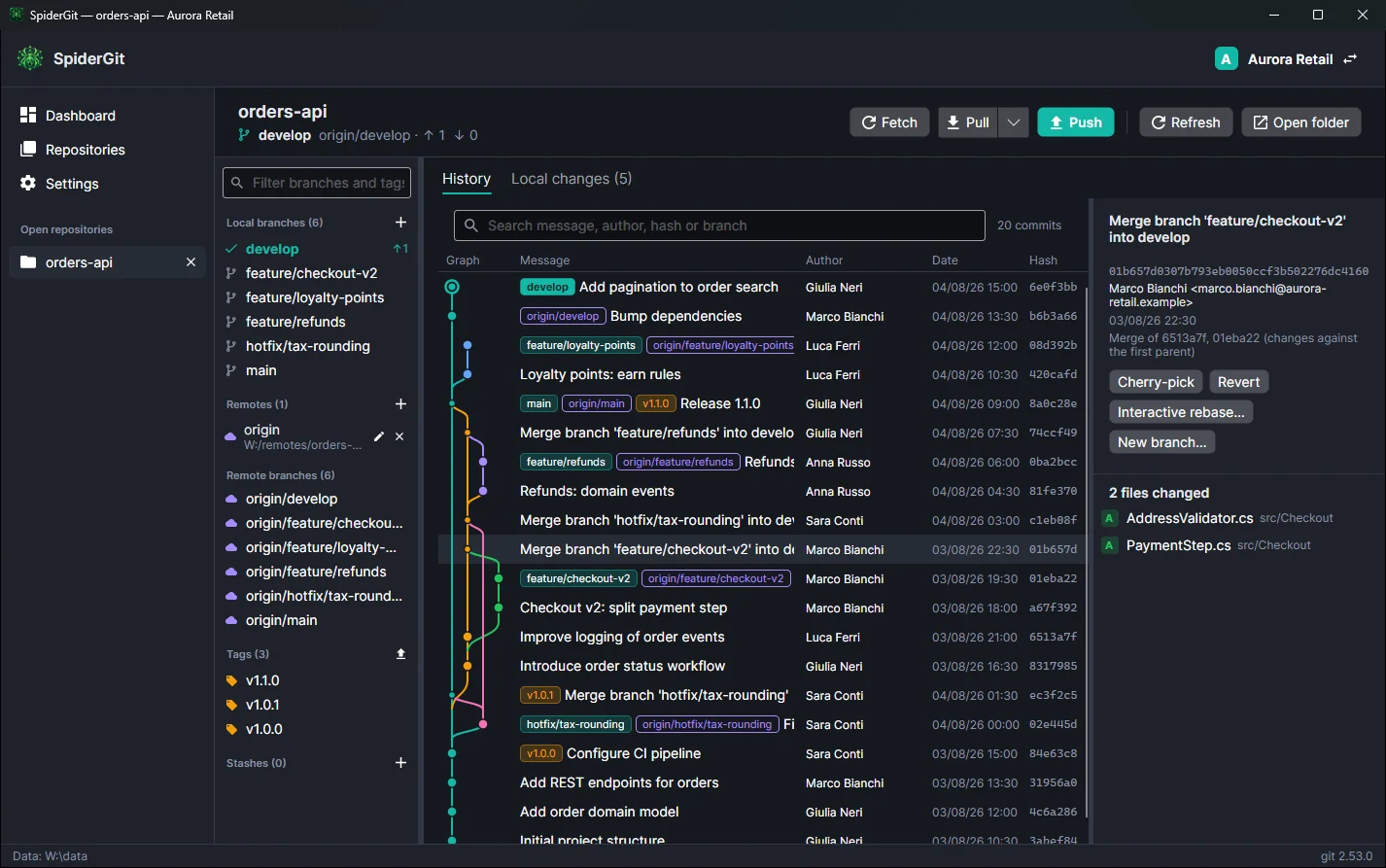
From the overview to the details, in one click
Open any repository from the dashboard: it opens in a tab in the sidebar, next to the others you’re following. There you’ll find the branch graph, changes, commit and push, pull, merge, rebase, conflicts and blame. Close the tab and you’re back to the overview.
Step 6
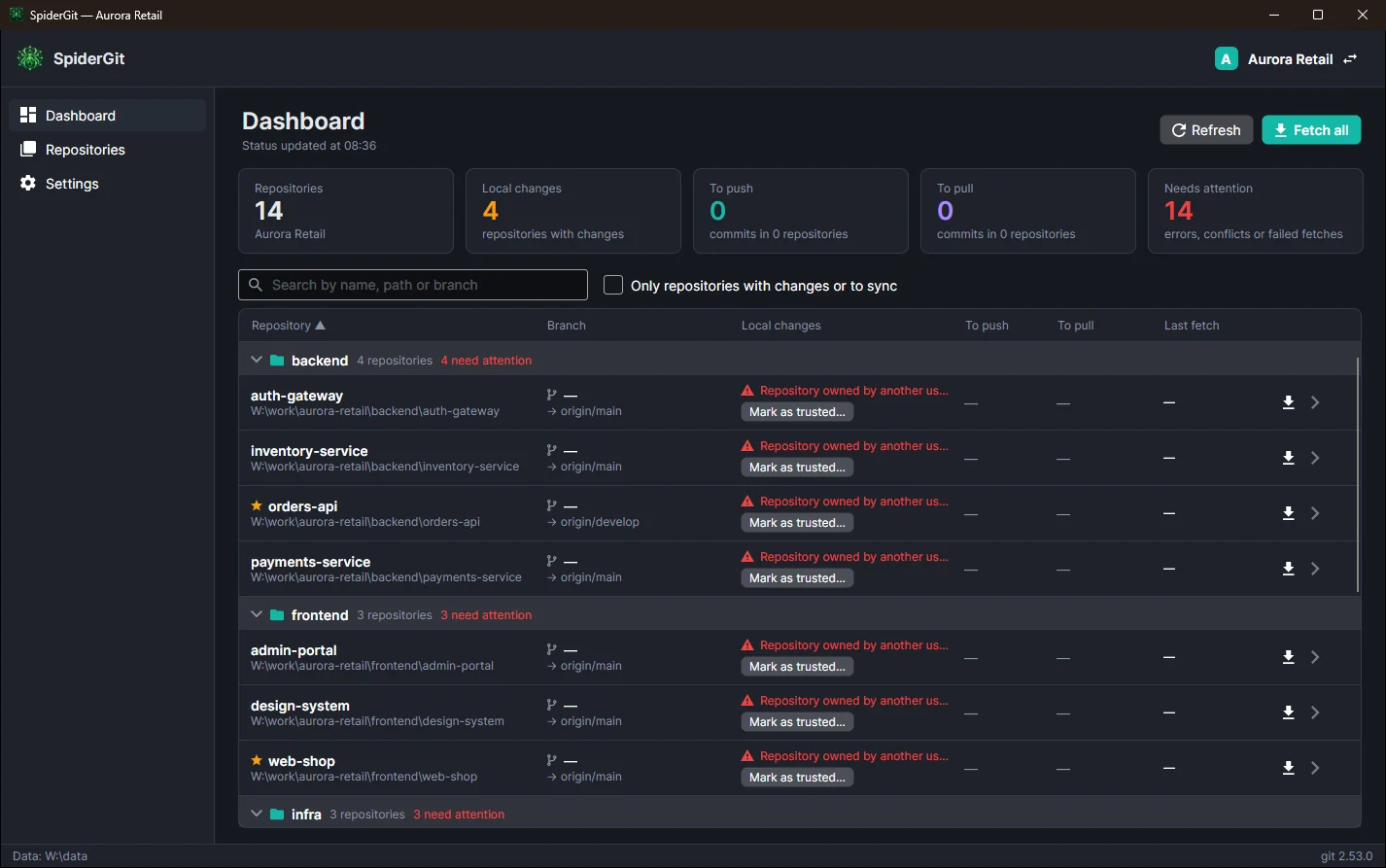
Problems reported, not hidden
- A folder that was moved or deleted shows up in red with “The folder no longer exists.”
- A repository copied from another PC, which git refuses for security reasons, is recognized: a button marks it as trusted.
- Every error opens with a click and shows git’s complete message.
Try SpiderGit with your own projects.
Three steps are all it takes: install it, create a workspace, add your projects folder and start the scan.