
Features
Everything SpiderGit can do
SpiderGit brings two levels together: the big picture, with workspaces and a dashboard for all your repositories, and work on a single repository, with the everyday git tools. You’ll find them all here.
01 · Dashboard
The status of every repository, at a glance
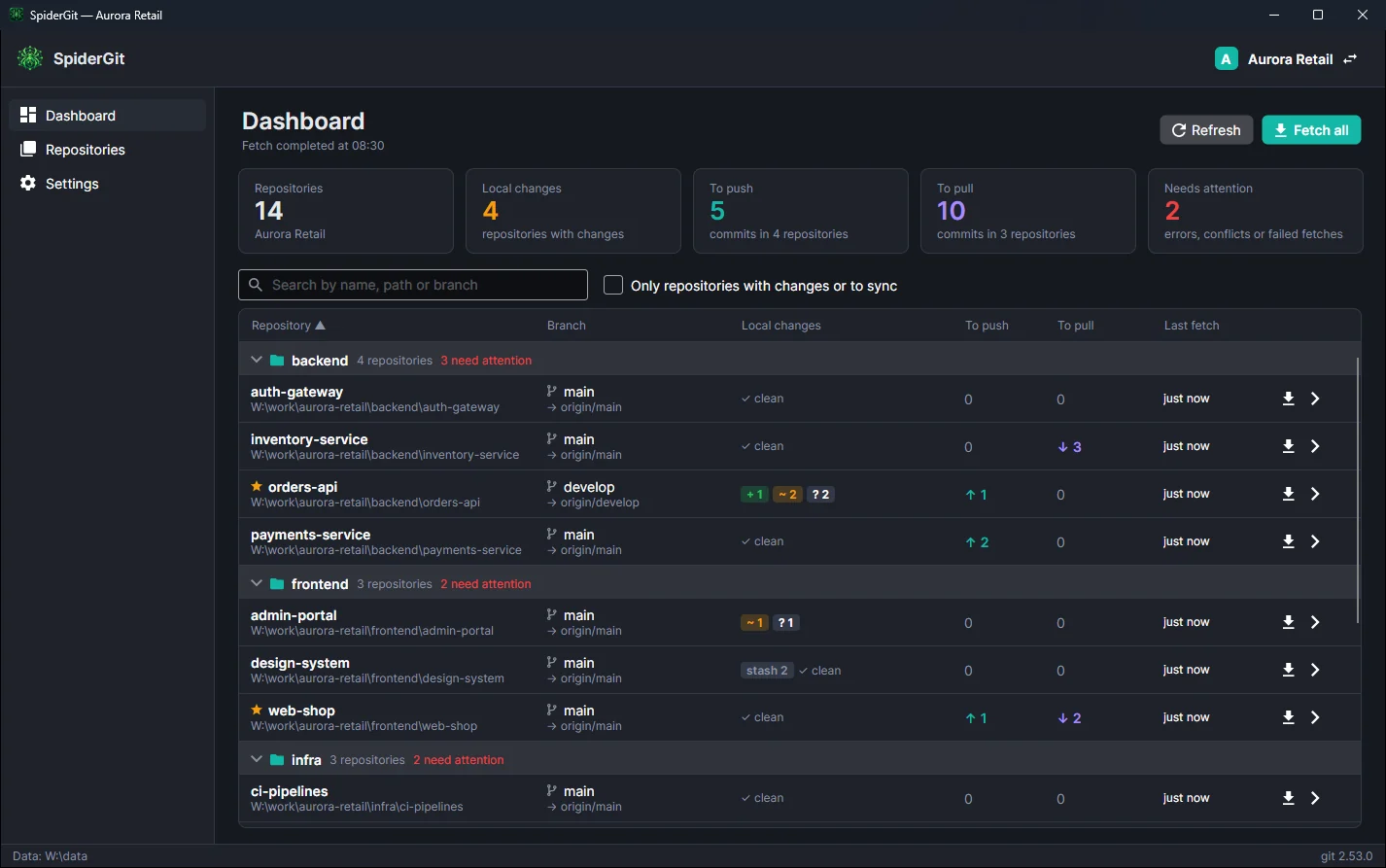
The dashboard is the heart of SpiderGit: a table with every repository in the open workspace and, for each one:
- current branch and linked remote branch (upstream), or a note when HEAD is detached or the branch was never published;
- local changes: staged, modified, untracked and conflicted files, with colored badges, plus the number of stashes;
- commits to push (↑) and to pull (↓) relative to the upstream;
- time of the last fetch;
- any errors: folder moved or deleted, unreadable repository, failed fetch.
At the top, five tiles sum up the whole workspace: number of repositories, how many have local changes, how many commits are waiting to be pushed and in how many repositories, how many to pull, how many repositories need attention.
Groups
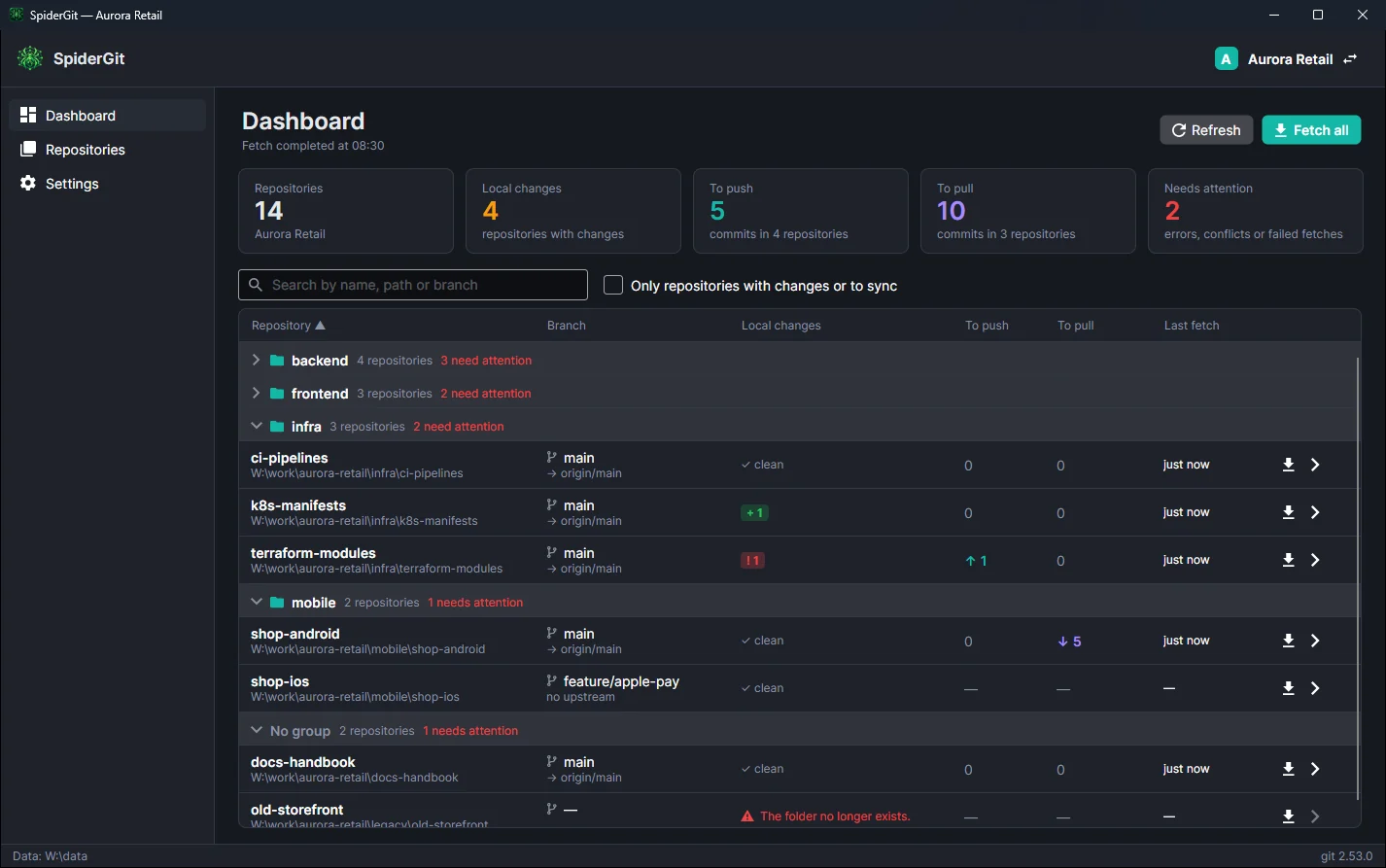
Repositories can be grouped (for example backend, frontend, mobile, infra). Each group shows how many repositories it contains and how many need attention, and opens or closes with a click. Repositories without a group are listed last.
Organize without leaving the dashboard
Right-click a repository to open it, fetch it, rename it, change its group or move it to an existing group; from a group header you can rename or ungroup it. To move a repository you can also simply drag it onto the target group.
Always up to date
- Refresh re-reads the local status of all repositories in parallel, without network access.
- Fetch all downloads updates from the remotes in the background, so the commits to pull are real; it can run automatically when the workspace opens.
- The status is saved: at startup the dashboard appears immediately with the latest data, then refreshes.
- Search by name, path or branch, sort by any column and the “Only repositories with changes or to sync” filter.
02 · Workspaces
Clients, companies, projects: everything in its place
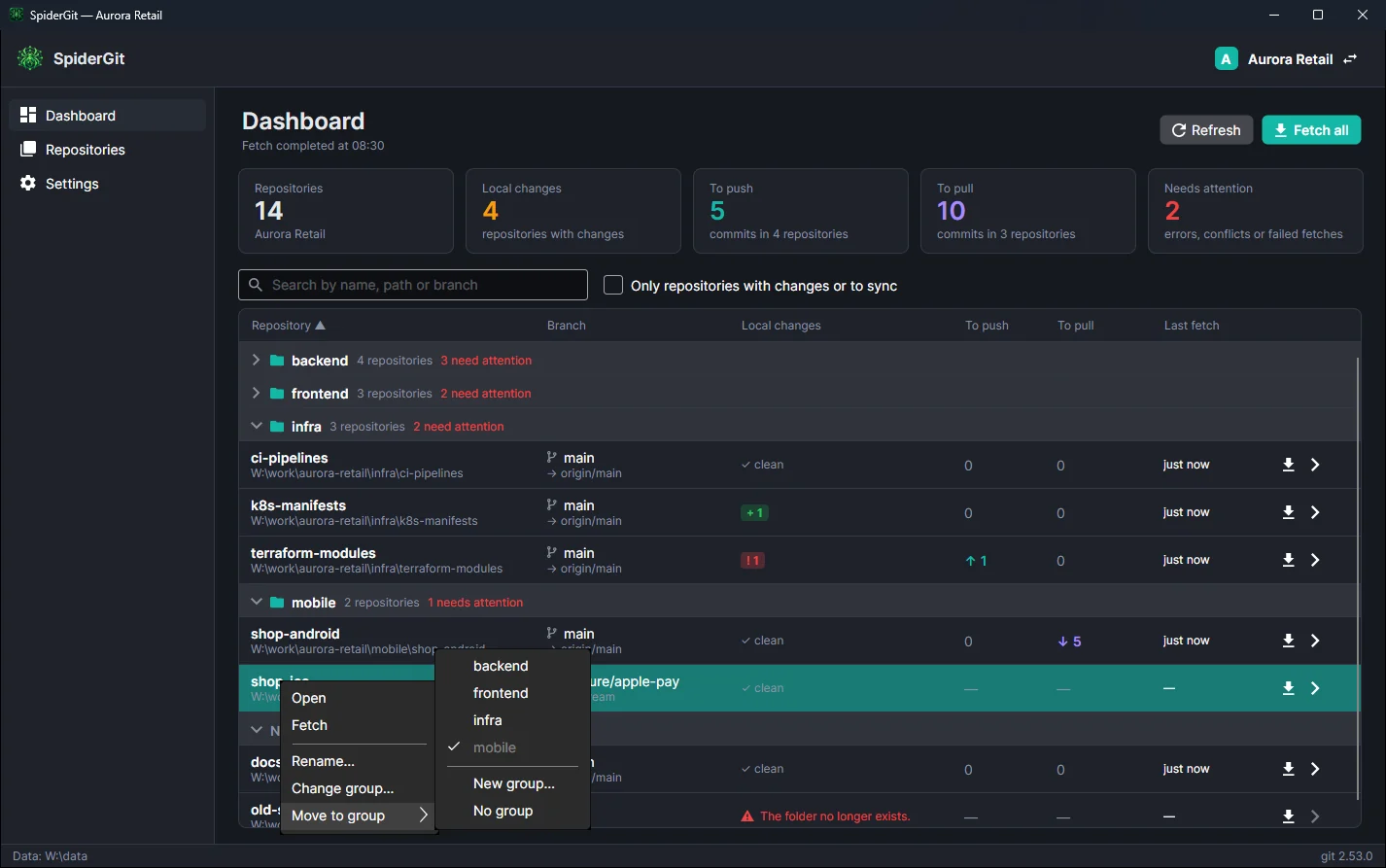
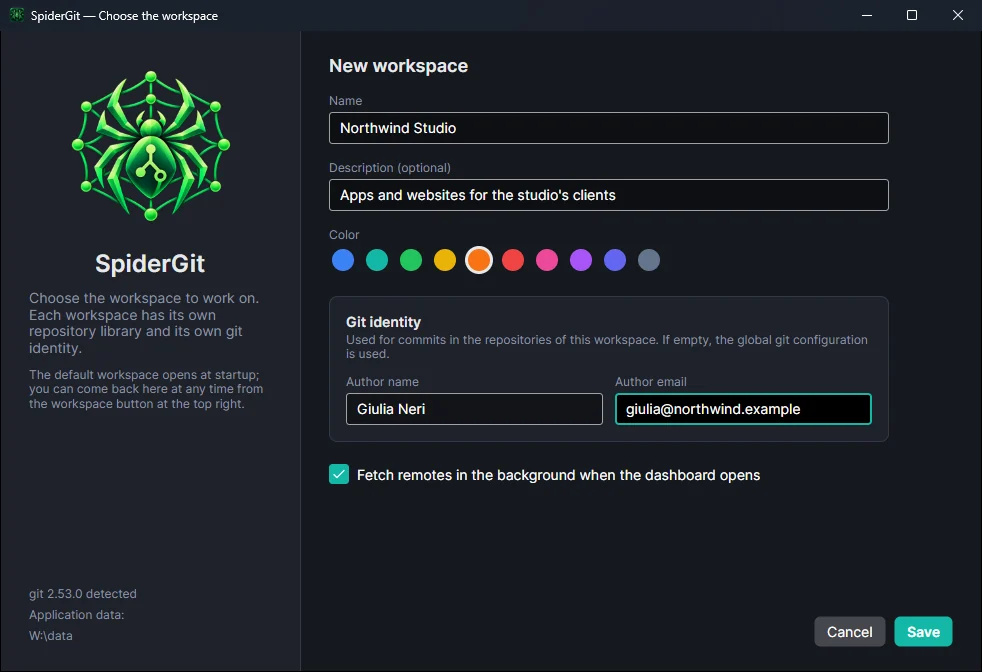
A workspace is a set of repositories with its own settings. Create as many as you want, for example one per client, one for open source projects and one for personal ones.
- Git identity per workspace: the name and email used for commits, merges, tags, cherry-picks and reverts in that workspace’s repositories, without changing git’s global configuration.
- Color and description to recognize it at a glance.
- Automatic fetch on opening, enabled per workspace.
- Default workspace, opened directly at startup; the others are one click away from the button at the top right.
- The same repository can belong to several workspaces, with independent group and favorites.
- Duplicate a workspace with its settings and repositories.
03 · Library and scan
Import dozens of repositories, already organized
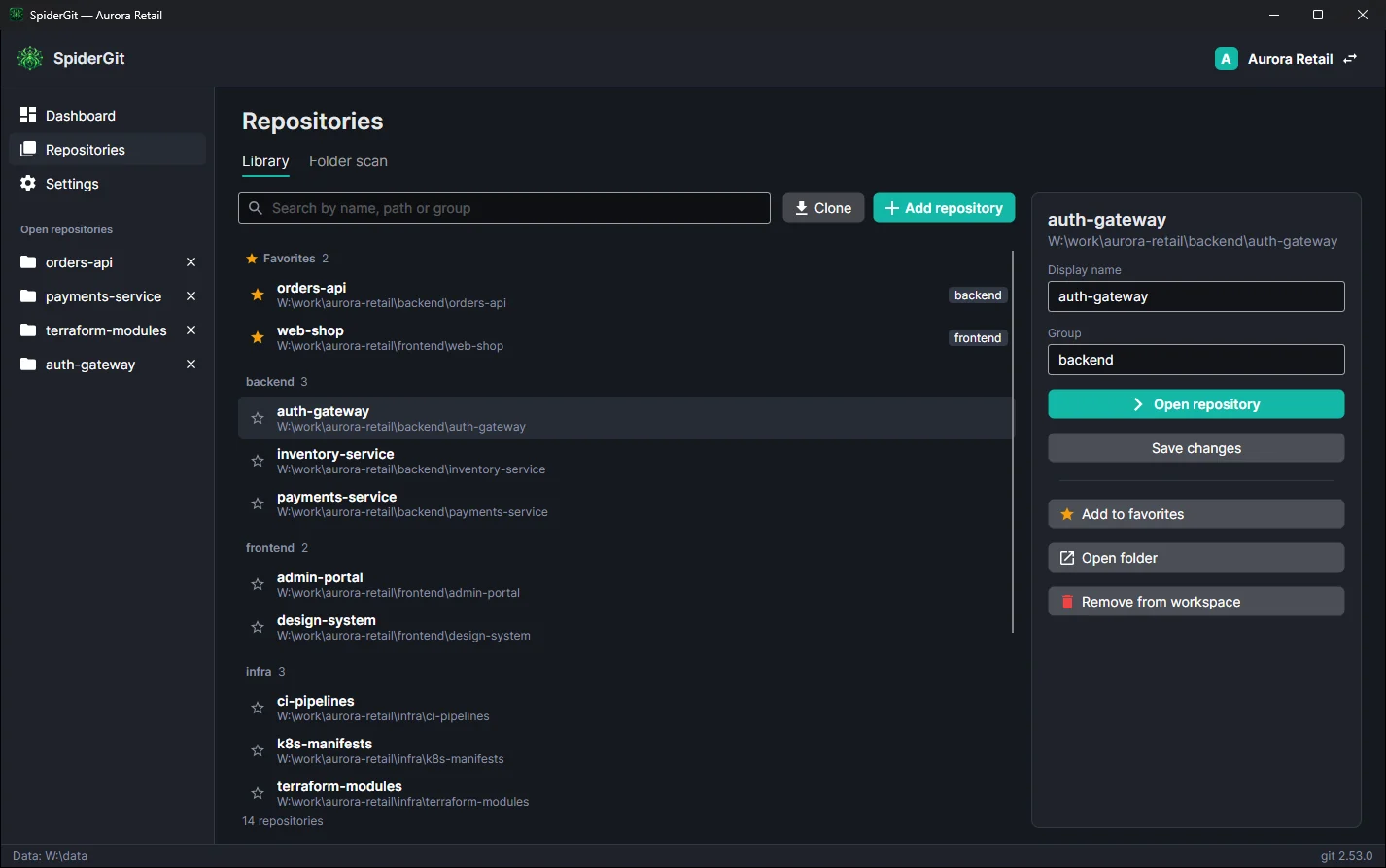
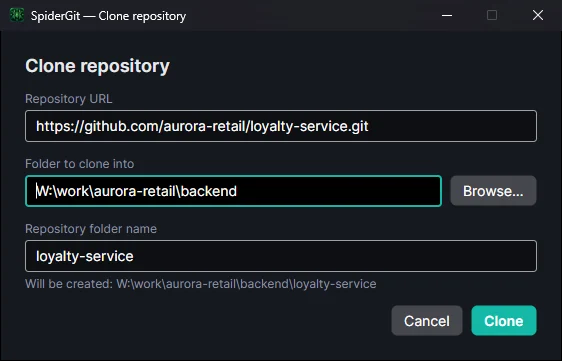
The library collects the workspace’s repositories: favorites first, then the groups; for each repository you can change the display name and the group, open the folder or remove it from the workspace (the files are not touched). Repositories can be added one at a time, by cloning them from a URL with real-time progress, or in bulk with the scan.
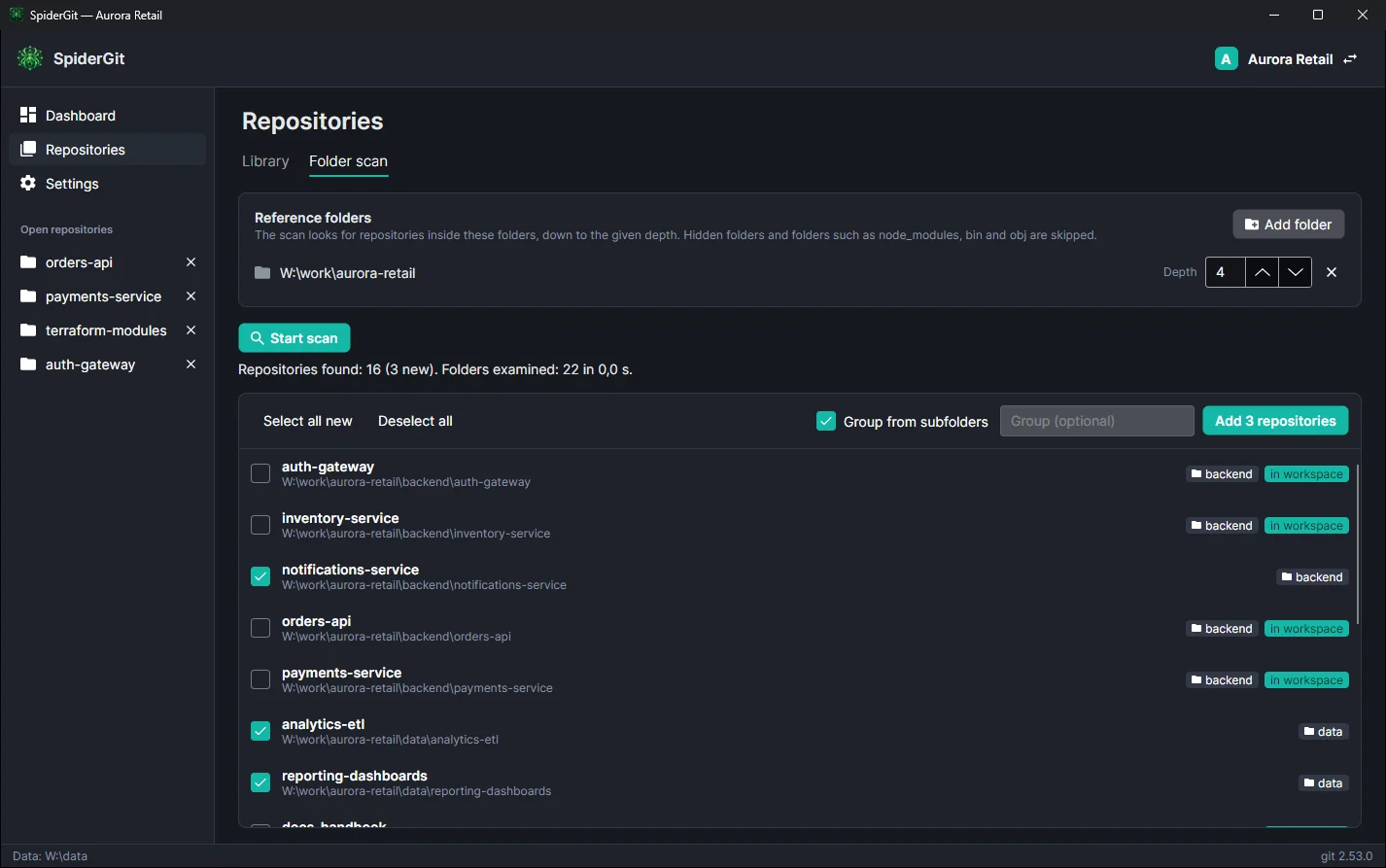
The scan looks for repositories in the reference folders down to the depth you choose, skips heavy folders (node_modules, bin, obj…) and flags the ones already present. With the “Group from subfolders” option each repository gets as its group the folders between the reference folder and the repository itself: starting from W:\work\aurora-retail, backend\notifications-service goes into the “backend” group and data\analytics-etl into the “data” group.
04 · History and graph
Your project’s history, finally readable
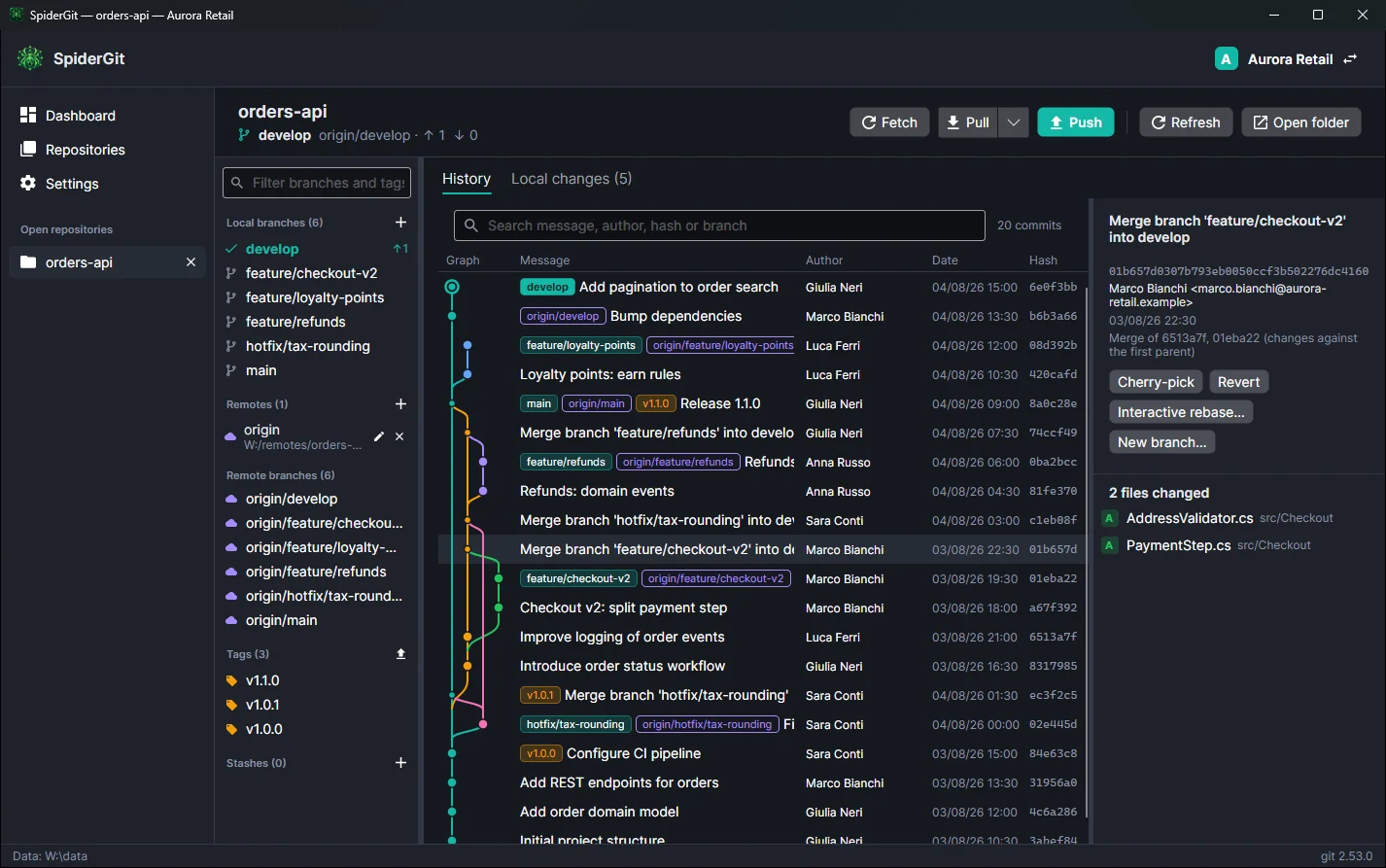
- Colored branch graph, with merges and forks.
- Local branch, remote branch and tag labels on commits.
- Search by message, author, hash or branch.
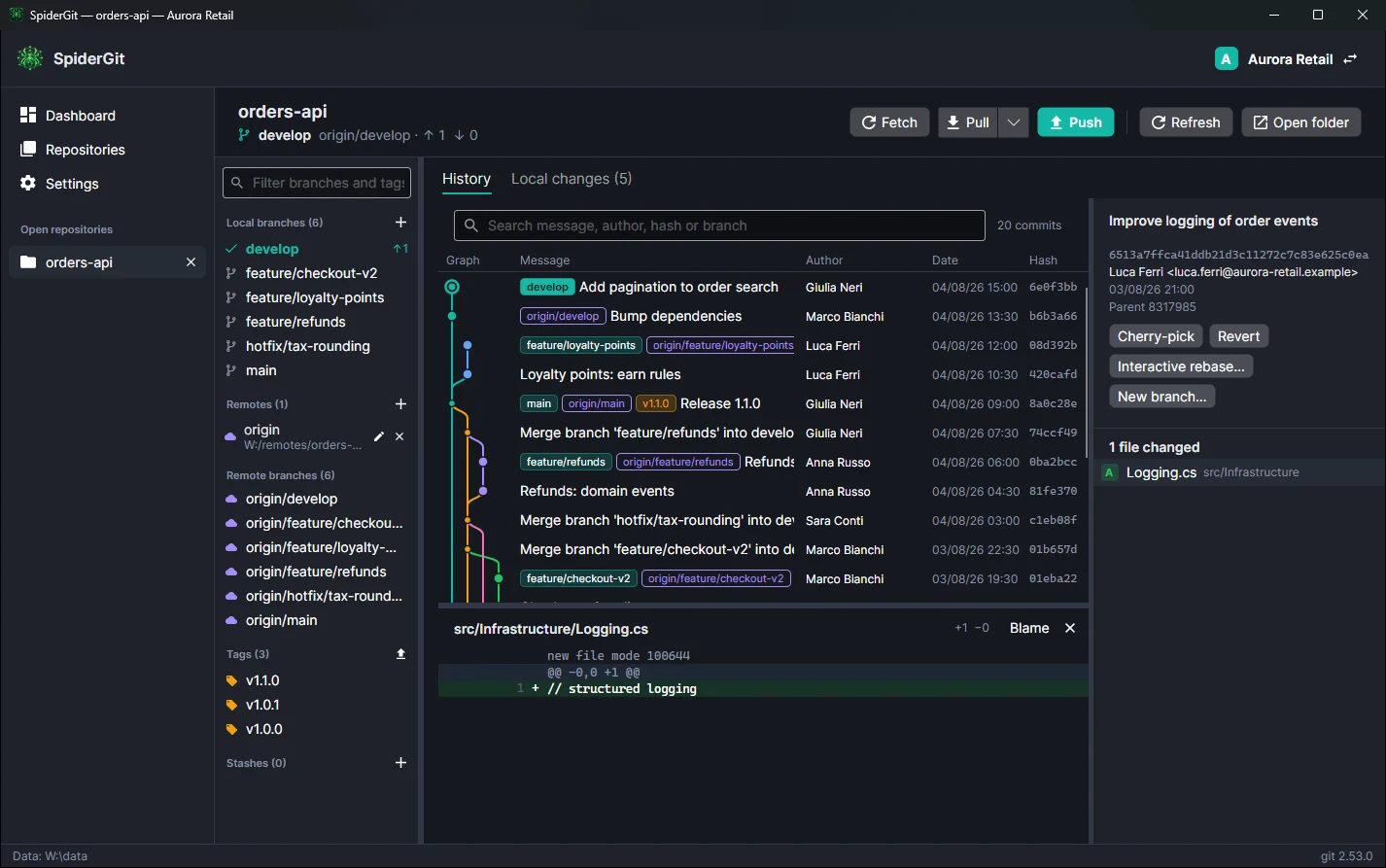
- Commit details: full message, author, date, parents, changed files and the diff of each file.
- Choice of order: by commit date, by author date or topological (the setting applies immediately).
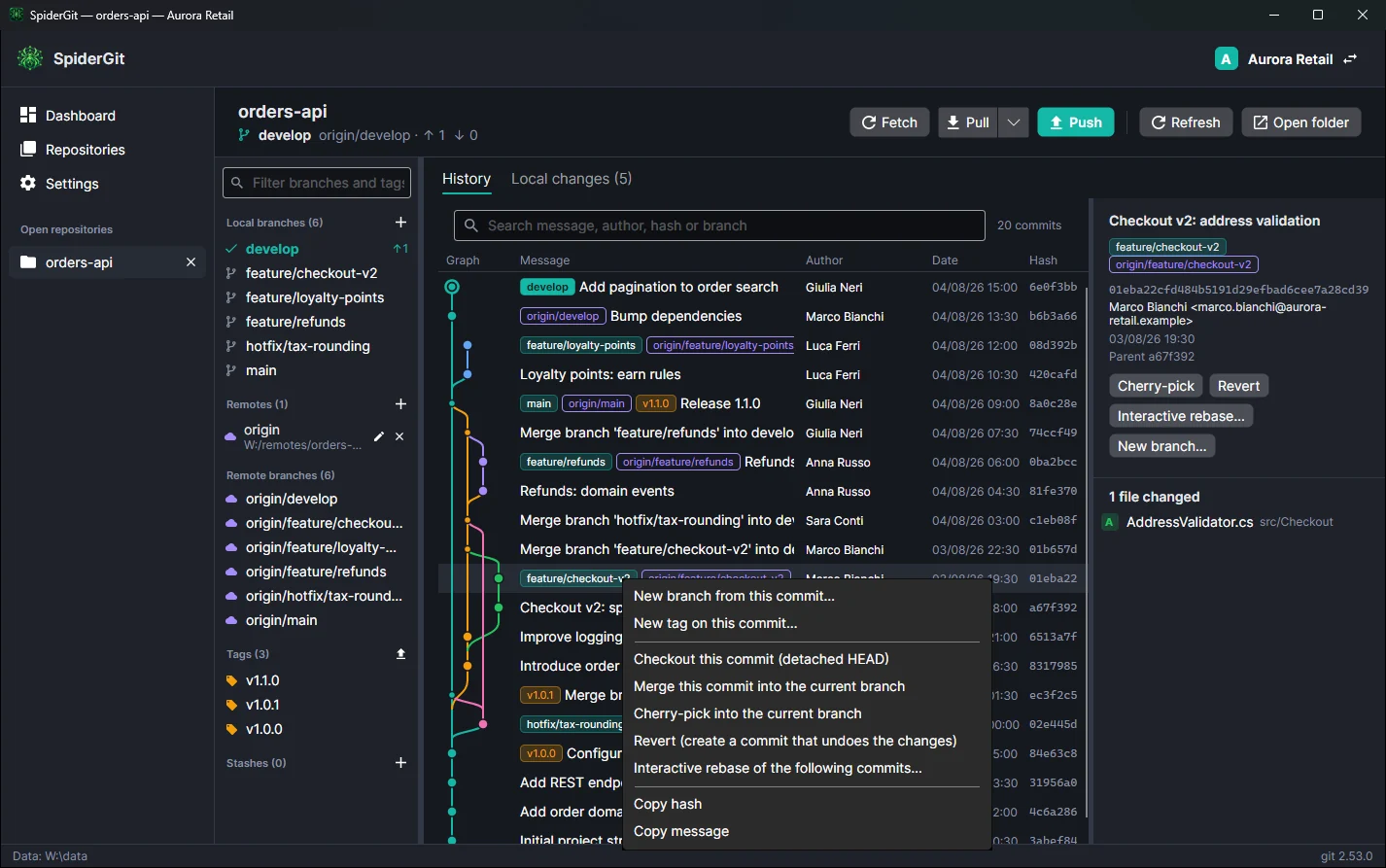
- From a commit’s context menu: new branch or tag, checkout, merge, cherry-pick, revert, interactive rebase, copy hash and message.
05 · Changes and commits
Prepare the commit exactly the way you want
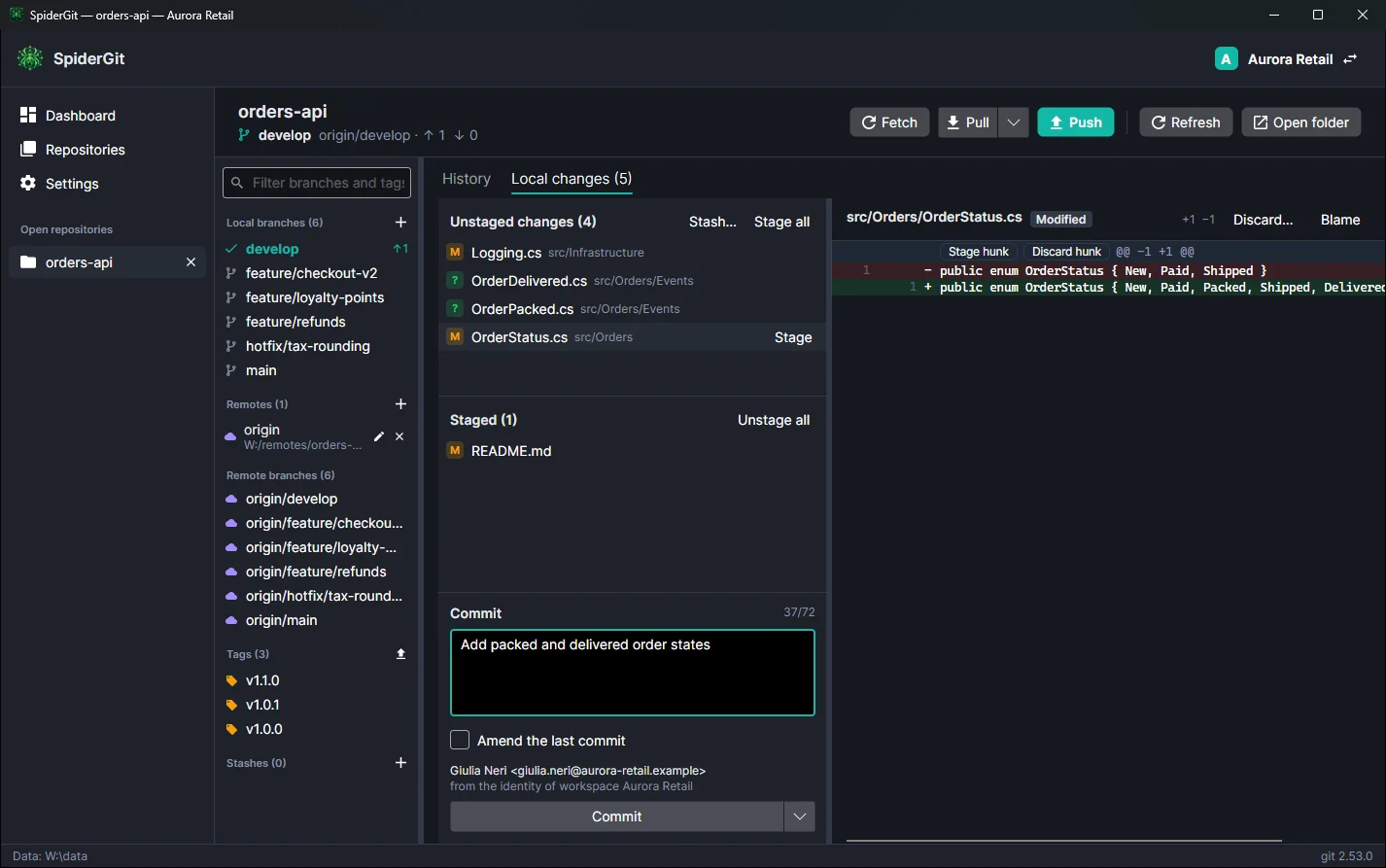
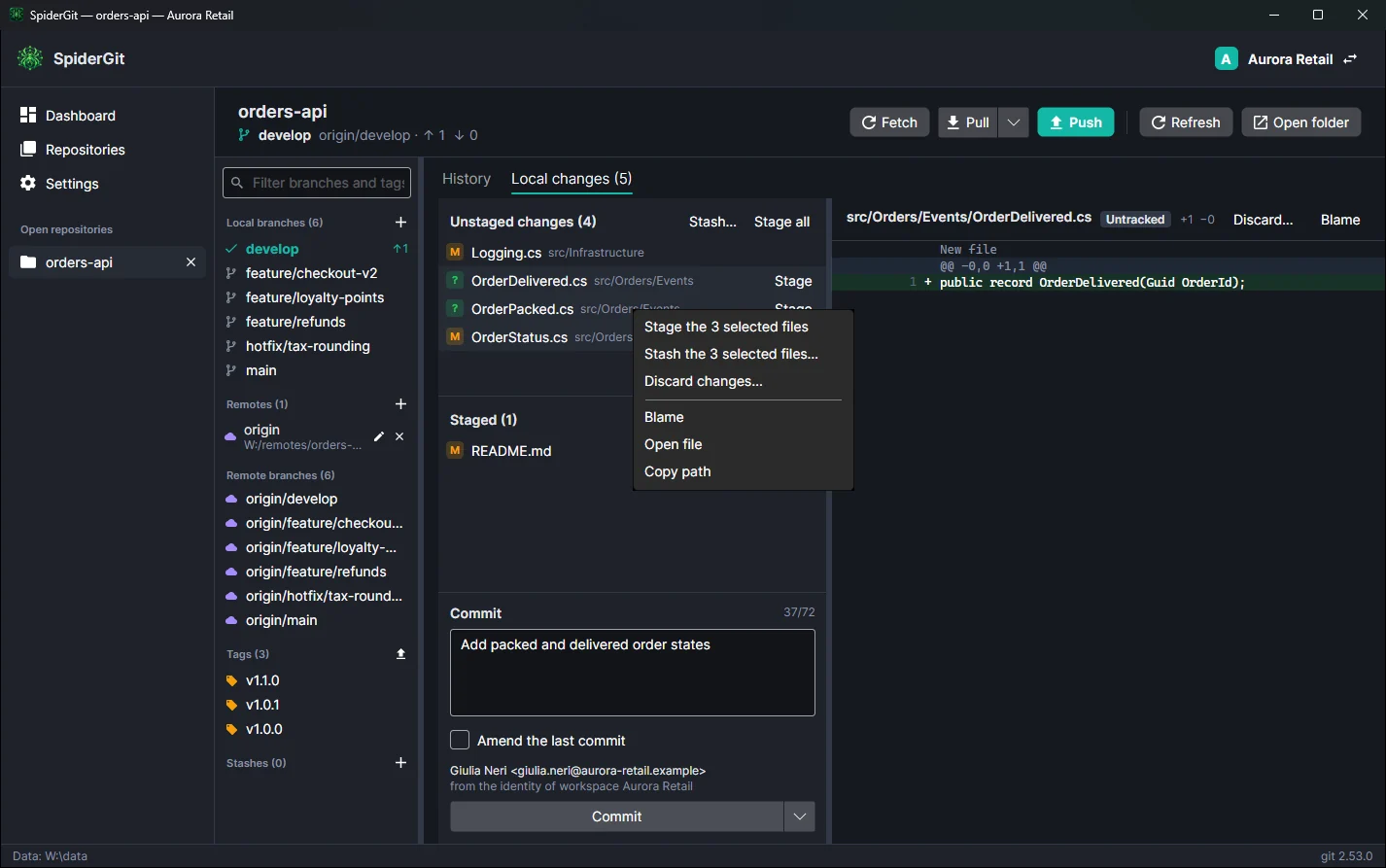
- Two lists, unstaged and staged, with the status of every file (modified, added, deleted, renamed, untracked, conflicted).
- Diff next to the list, with line numbers.
- Hunk staging: stage, unstage or discard a single block of changes, not just the whole file.
- Multiple selection (Ctrl or Shift + click): stage, unstage and stash only the selected files from the context menu.
- Discard changes with confirmation; untracked files are deleted only after an explicit warning.
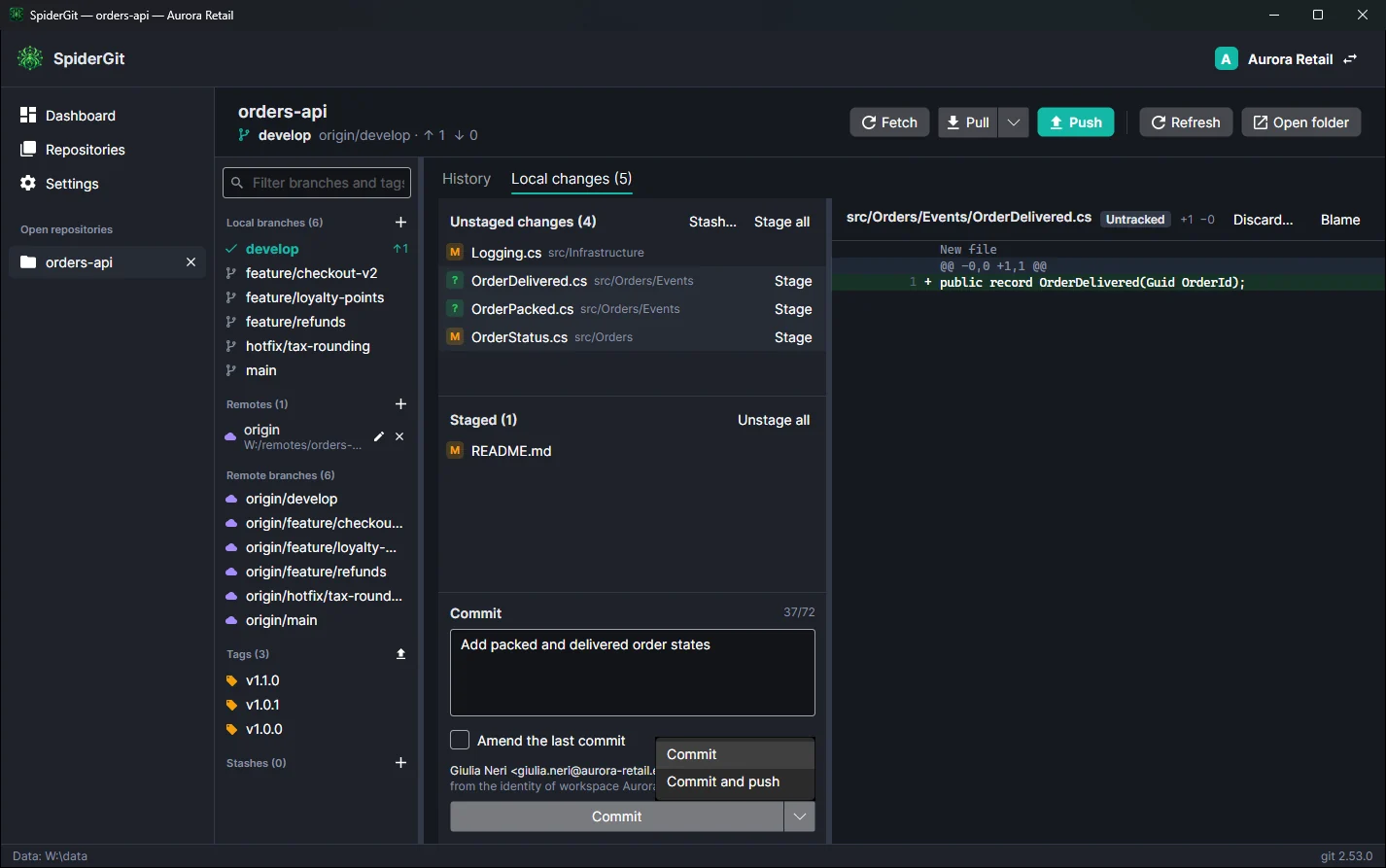
- Commit with a summary length counter, amend of the last commit and Commit and push in a single step (also with Ctrl+Shift+Enter).
- You always see which identity the commit will use: the workspace’s or git’s global one.
- The list refreshes by itself when files change on disk.
06 · Branches, tags and remotes
The repository’s full control panel
In the side panel of the repository view (you can see it on the left in the history screenshot):
- Local branches with the commits to push and to pull; remote branches; tags; remotes; stashes.
- Branches: create, switch (also from a remote branch, with automatic tracking), rename, delete (with a warning if it contains unmerged commits), merge into the current branch.
- Tags: create (annotated too), delete, publish to the remote.
- Remotes: add, edit the URL, remove; delete branches and tags from the remote.
- Fetch, pull (merge, rebase or fast-forward only) and push with progress; a new branch is published by choosing remote and name; if the push is rejected you can pull first or overwrite safely (force-with-lease).
- Stashes: create (including untracked files), apply, pop, drop.
07 · Advanced operations
Rewrite history, fearlessly
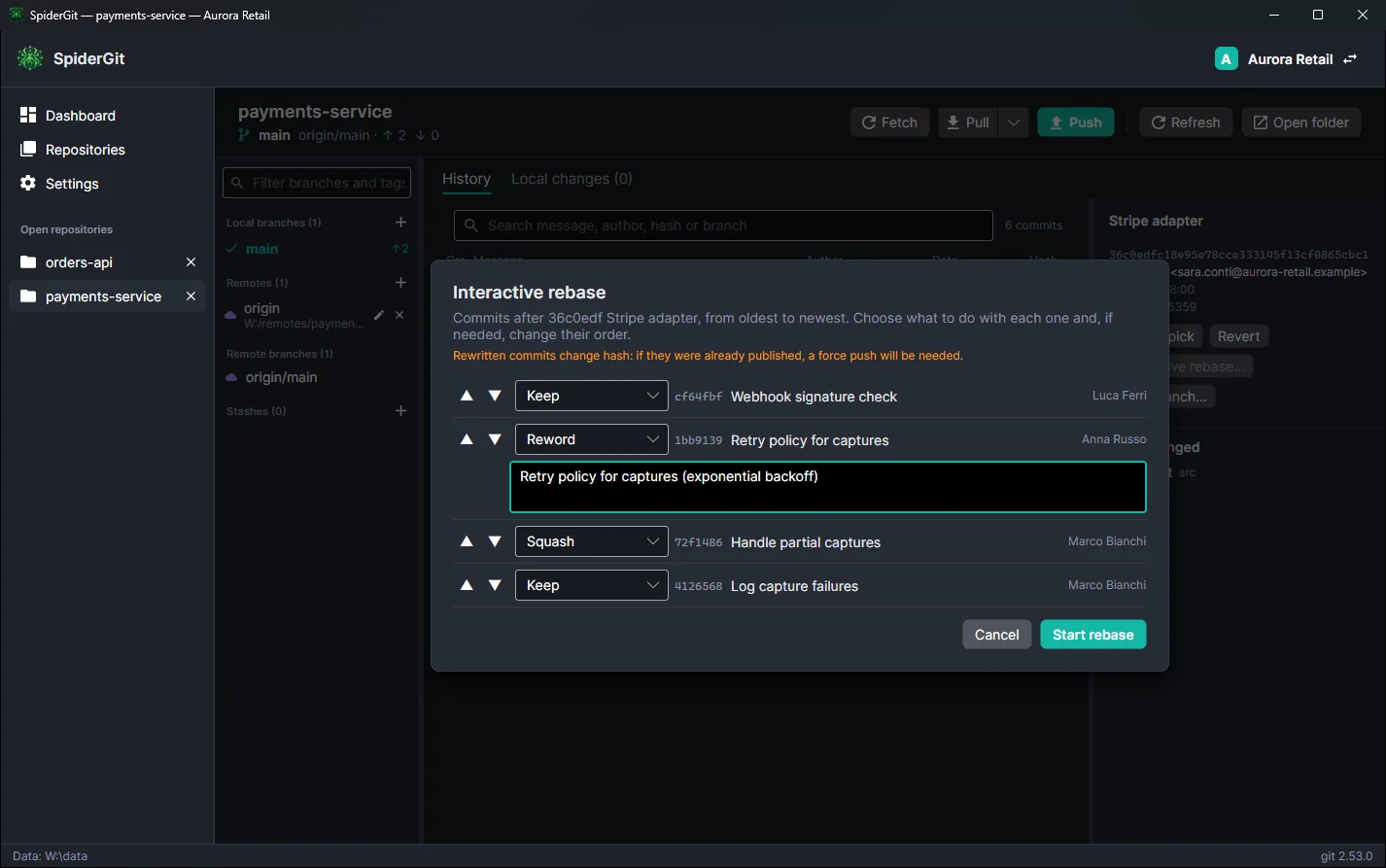
- Visual interactive rebase: for each commit choose whether to keep it, reword it, combine it with the previous one (squash or fixup) or drop it, and change the order with the arrows. No text editor to configure.
- Cherry-pick and revert of a commit with confirmation.
- Merge with the option to always create a merge commit.
- Checkout of a commit in detached HEAD, with an explanation of what it means.
08 · Conflicts
Conflicts without panic
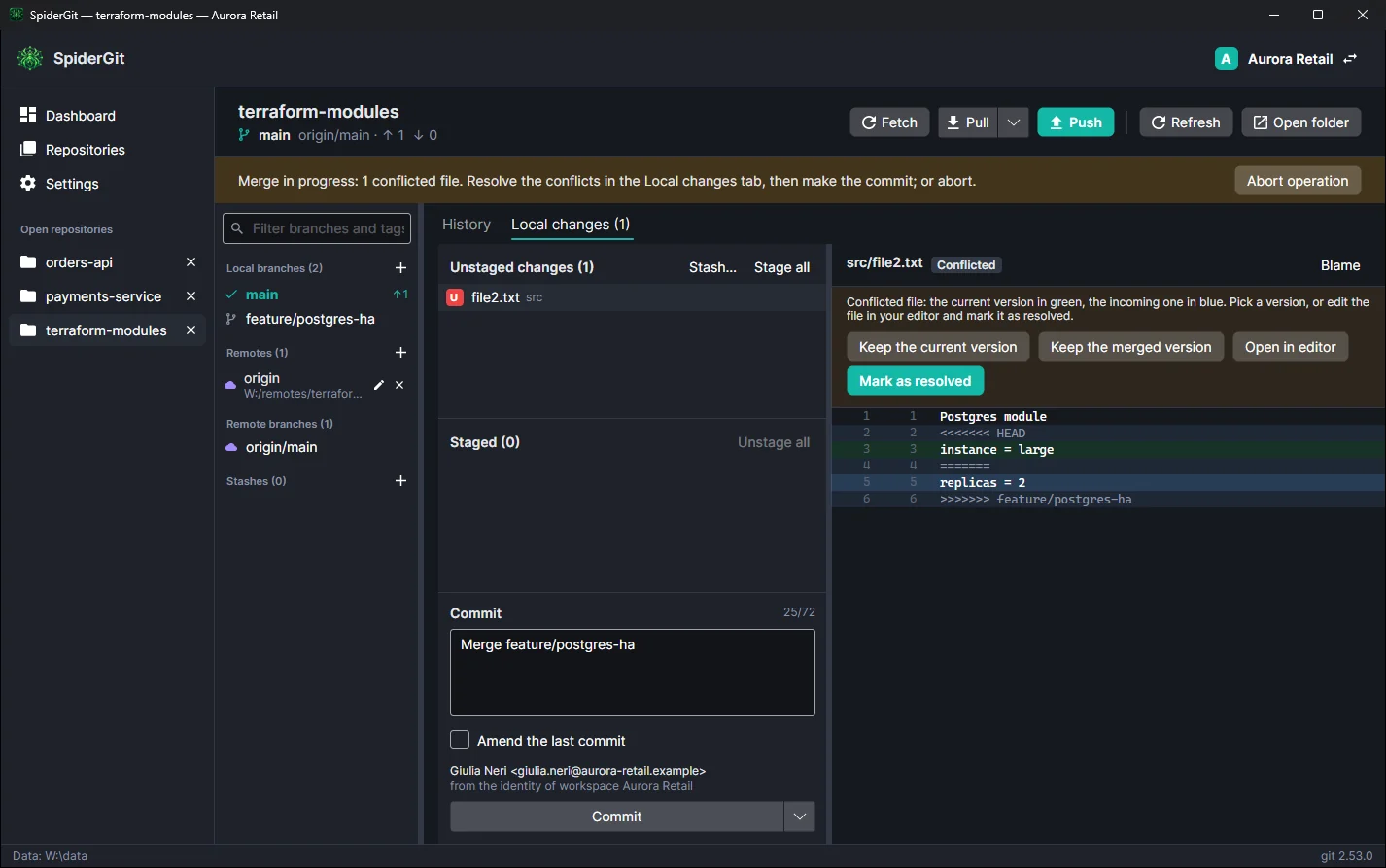
When a merge, rebase, cherry-pick or revert stops, SpiderGit tells you with a banner that explains what to do and offers Continue or Abort operation. For each conflicted file you see both versions highlighted and can keep the current or the incoming one with a click, open the file in your editor and mark it as resolved.
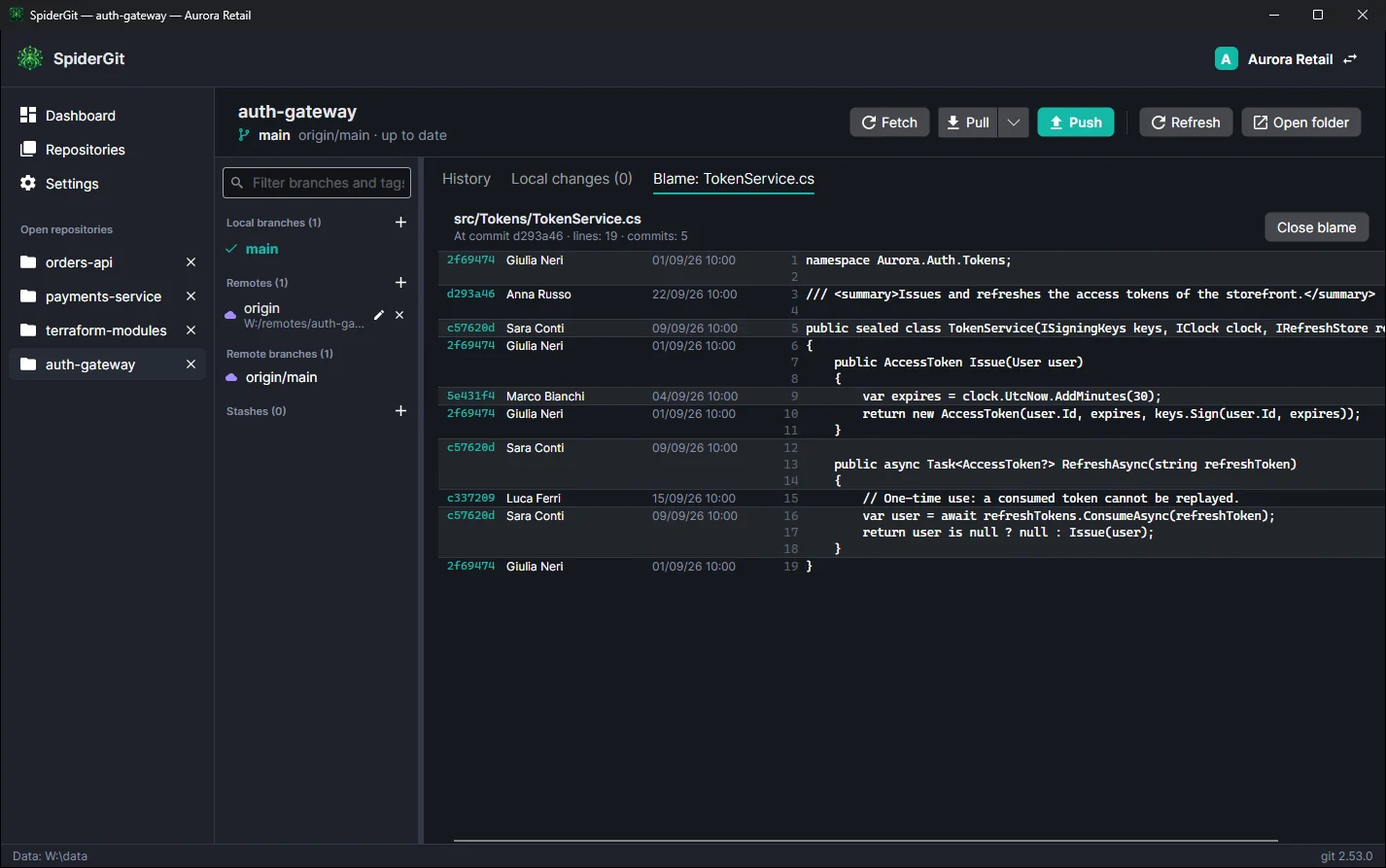
09 · Blame
Who wrote this line?
Blame shows, for every line of the file, the commit, author and date of the last change, including lines not yet committed. It opens from a modified file or from a file of a commit in the history.
10 · Security and credentials
Built for the real world
- Credentials: SpiderGit uses the credential helper configured in git (for example Git Credential Manager); if there isn’t one, it asks for username and password or token in a window, without storing them.
- Silent background operations: the automatic fetch never opens credential prompts.
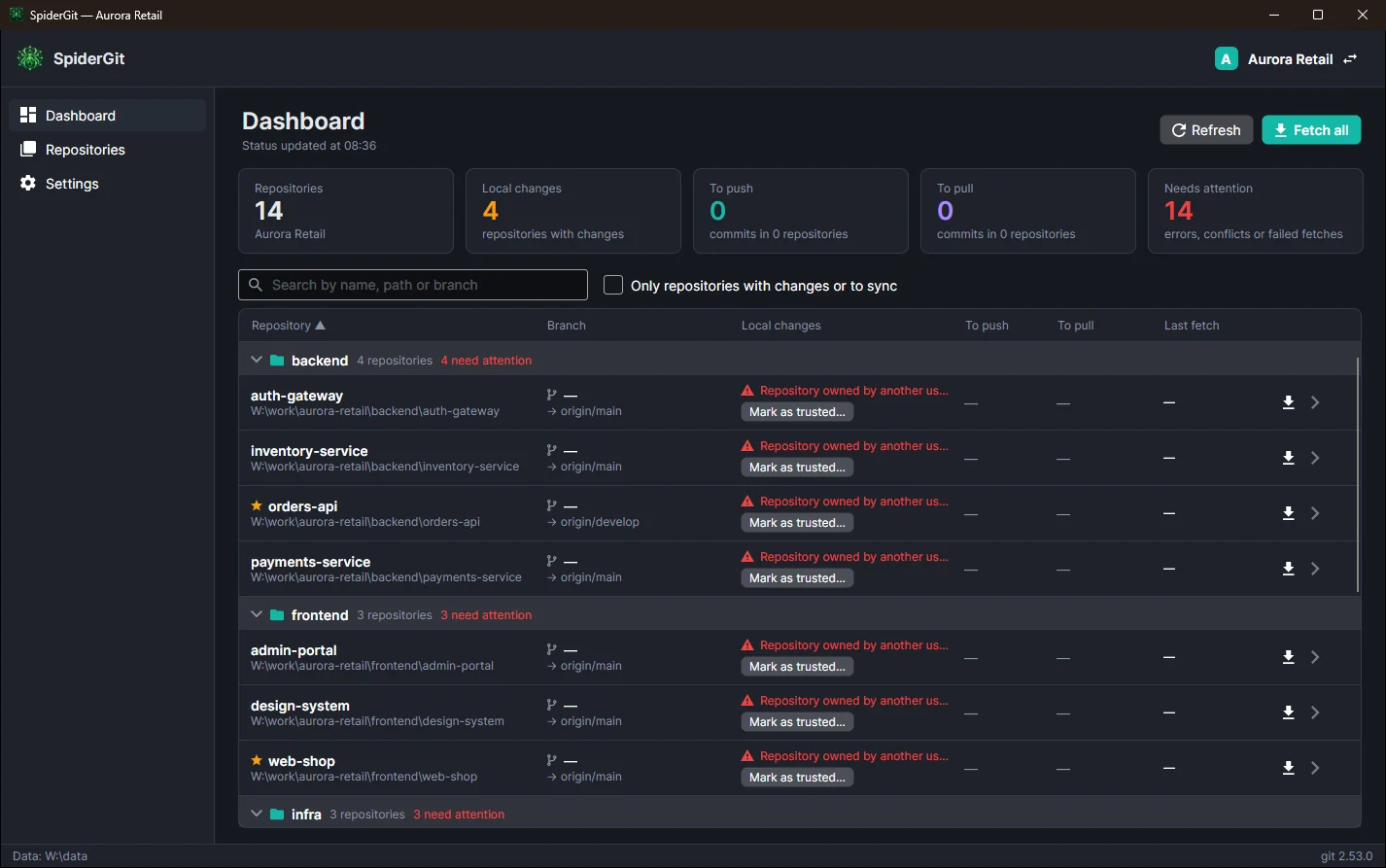
- Repositories owned by another user: when git refuses a repository for security reasons (“dubious ownership”, typical of external drives or folders copied from another PC), SpiderGit recognizes it and offers to mark it as trusted, showing the command it will run.
- Complete errors: one click on an error shows git’s full message, selectable so you can copy the commands git suggests.
11 · Settings and languages
Your way
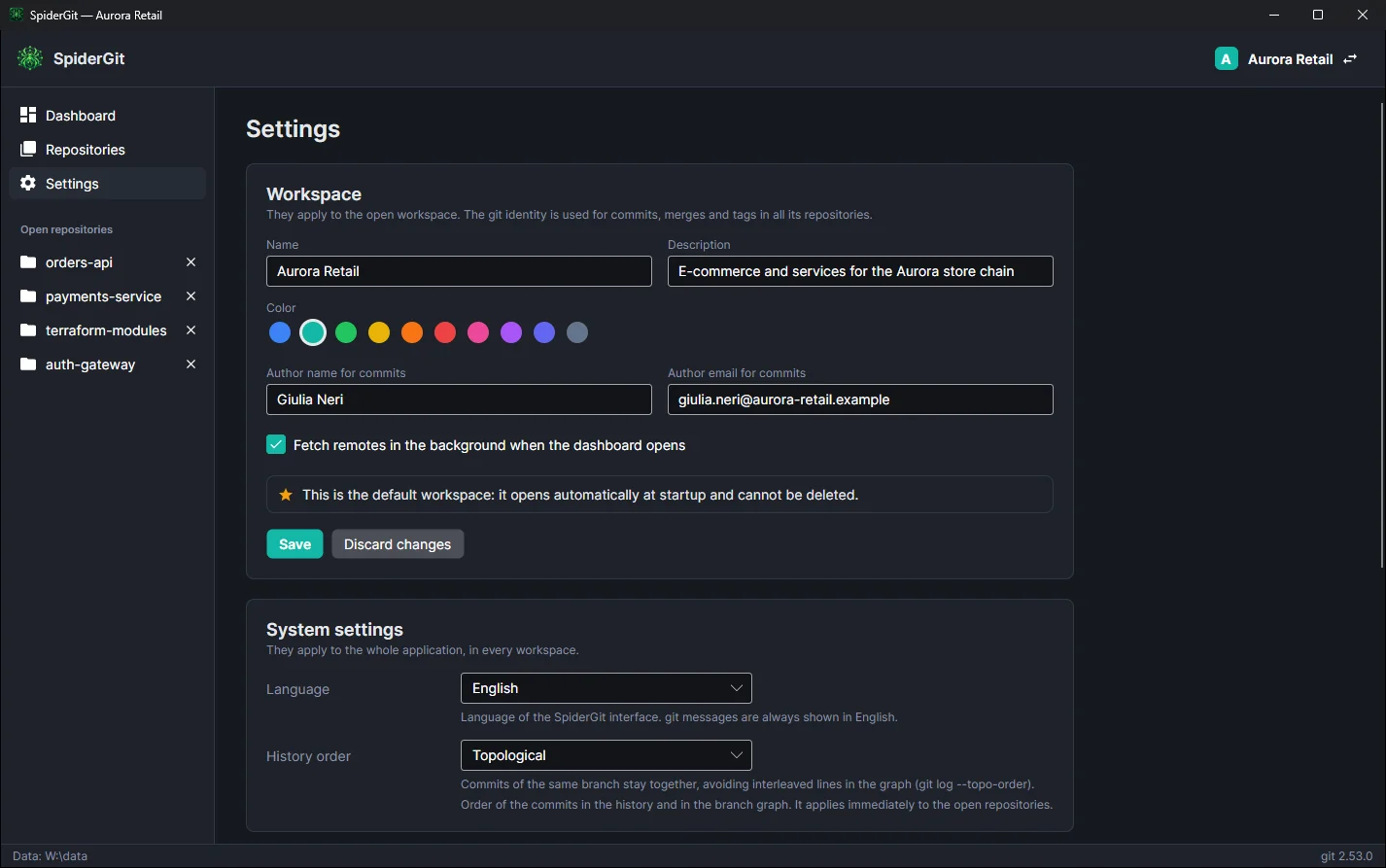
- Edit the open workspace: name, description, color, git identity, automatic fetch, default workspace.
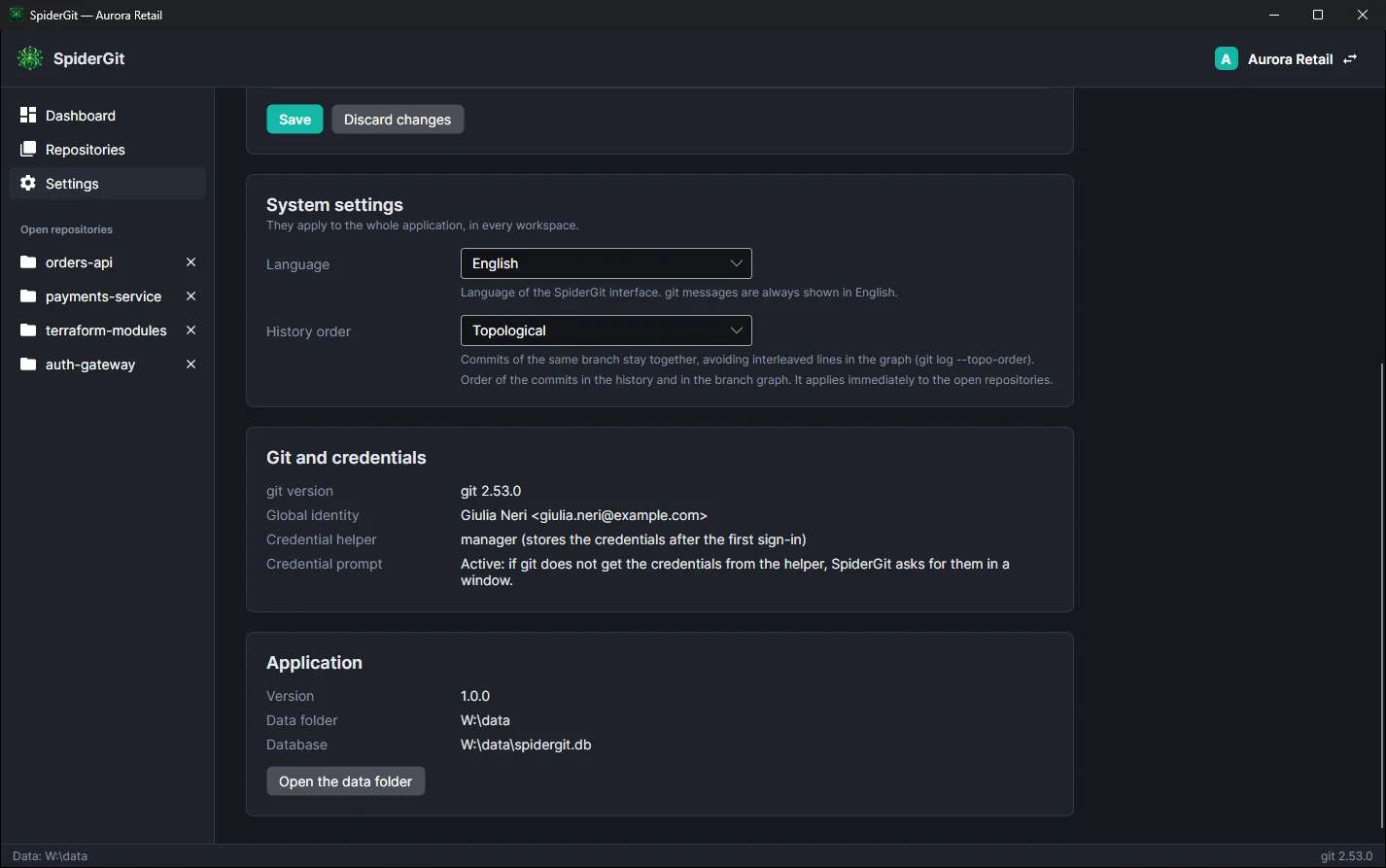
- System settings, valid for the whole application: interface language (English, Italian, Spanish or the system one) and history order.
- Information about git, global identity, credential helper and data folder.
Try it with your repositories.
SpiderGit is free, for Windows, Linux and macOS.